Project templates are in Public Preview. The feature is still evolving and standard SLAs don’t apply. We don’t recommend it for production workloads yet. It’s available to Enterprise customers on Cloud and to self-hosted customers running Octopus 2026.2. We’d love your feedback as we work towards General Availability, tell us what you think.
Overview
Project templates are reusable project blueprints that can be shared across multiple spaces in Octopus Deploy. Instead of manually configuring each new project from scratch, defining deployment steps and variables every time, you create a single template that any space can use as a starting point. This ensures teams follow the same standards and removes the risk of configuration drift.
To create or manage your project templates, navigate to Platform Hub. If you haven’t set up your Git repository, you must do so before creating a project template.
- Navigate to Project Templates in Platform Hub.
- Give the project template a Name and an optional Description.
- Create your project template.
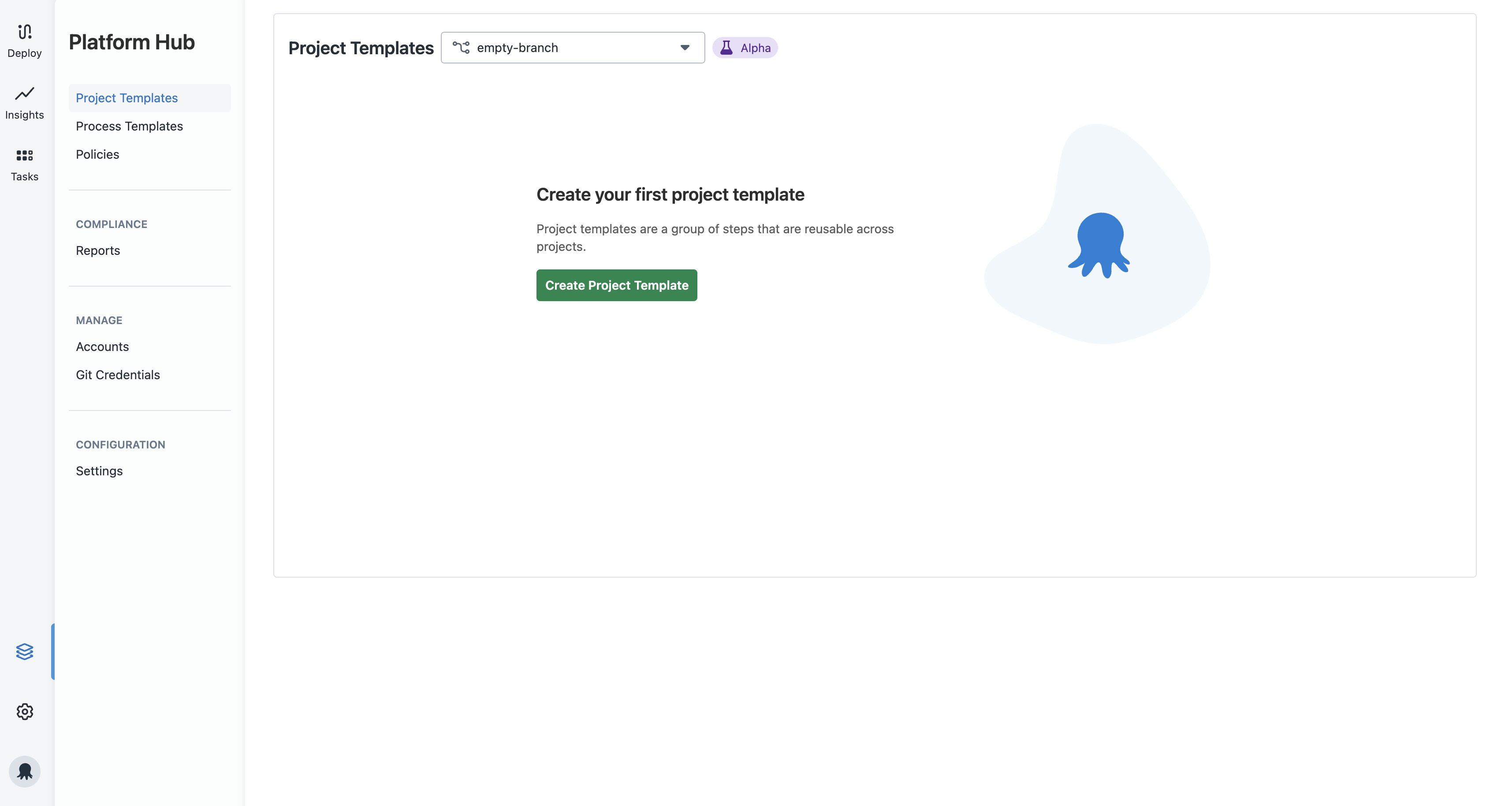
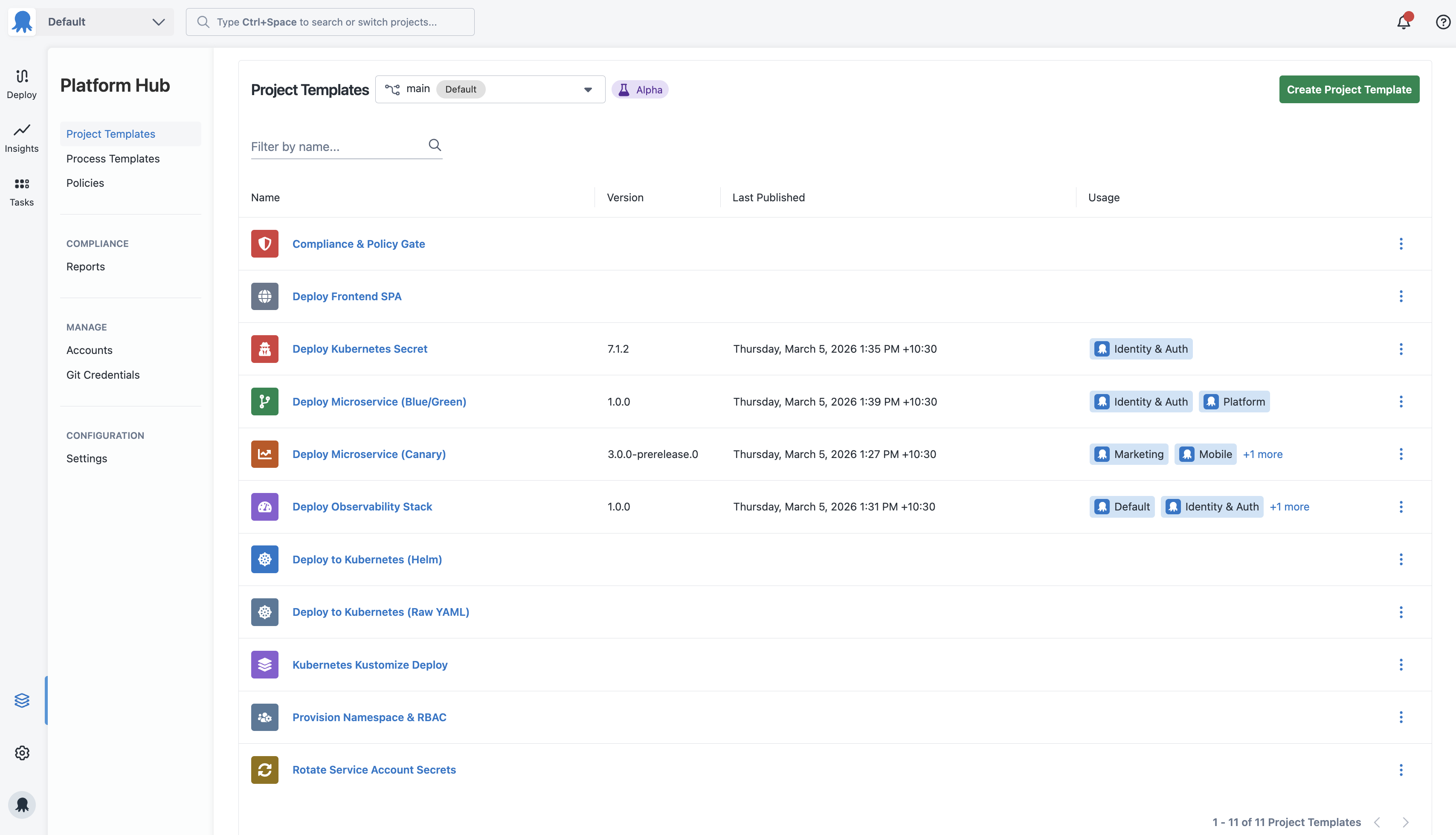
After creating your template, Octopus adds the template’s folder and OCL files to your Git repository. If you’ve already created templates or are joining an existing team, you’ll see the existing templates on the overview page.
You can now define the deployment process, parameters, and variables for the template.
Deployment process
The deployment process defines the steps Octopus orchestrates when deploying a project created from this template. Each project template has a single deployment process, and you can use Octopus’s built-in steps, step templates, community step templates, and process templates to define it.
Projects created from the template can’t modify the deployment process. They can’t add, remove, reorder, or disable steps. The only thing a project can configure is the parameter values explicitly exposed in the template, ensuring every project based on the template follows the same deployment process.
Some steps behave differently inside the project template editor. Instead of letting you set a value directly, they ask for parameters or variables. Parameters are required when a step requires a resource that Platform Hub can’t define, such as a Worker Pool, and that resource must be supplied by the project. These fields accept parameters so projects can provide the right values for their context.
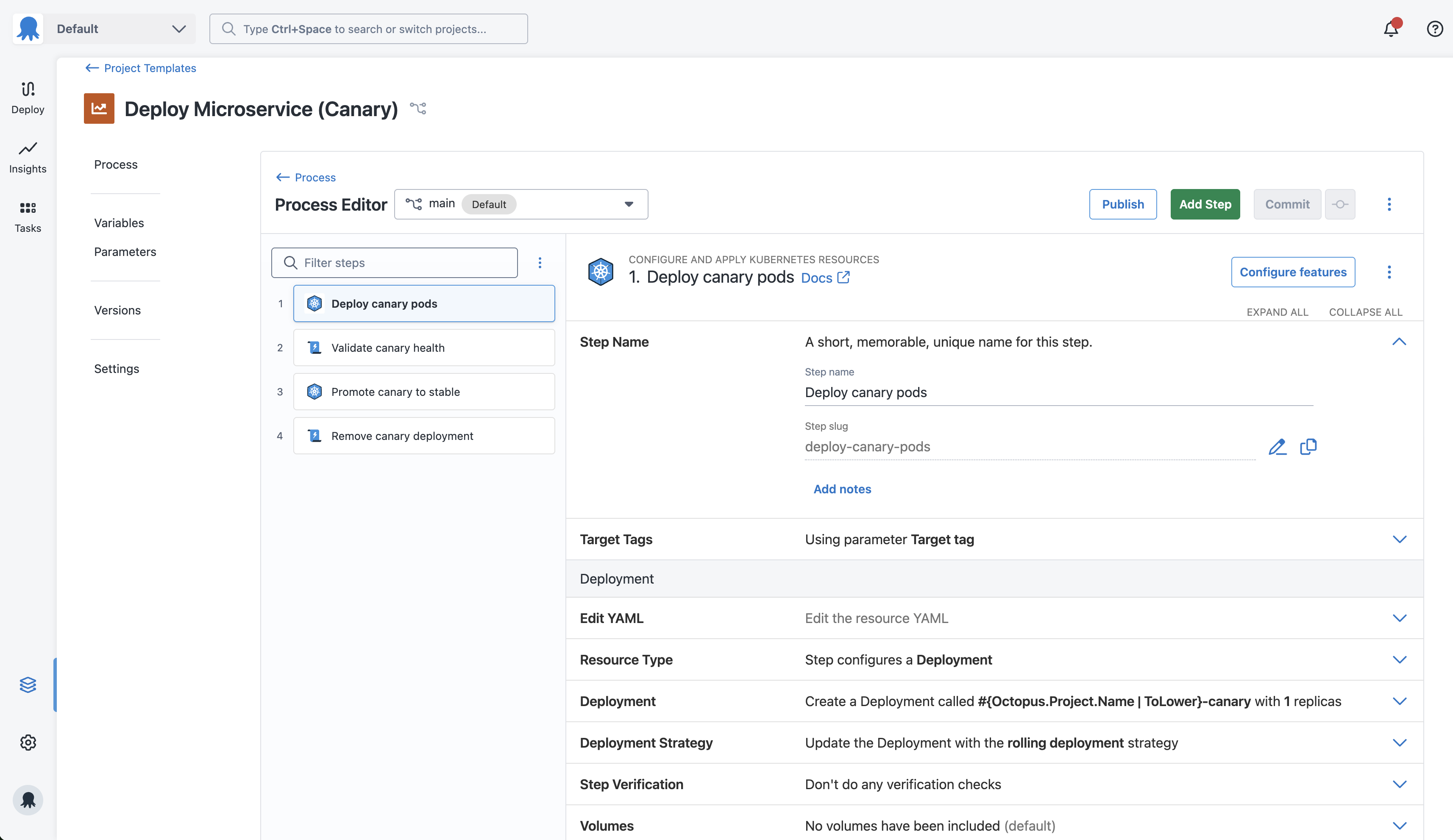
Unlike standard projects, project templates validate the deployment process when you publish, not when you commit. You can save an incomplete process and continue configuring parameters and variables before publishing. This will change once we add inline variable configuration to the deployment process editor.
If your deployment process includes a process template configured to auto-update on patch or minor versions, those updates flow through to templated projects automatically, even without you publishing a new version of the project template. This means two releases created on different days could use different versions of the process template, without anyone making any change to the project template or the project itself.
The project template process editor shows a warning callout when included process templates have received automatic updates since the template was last published. Use it to review the changes before publishing a new version.
We’re interested in your feedback on whether this behavior meets your expectations.
Parameters
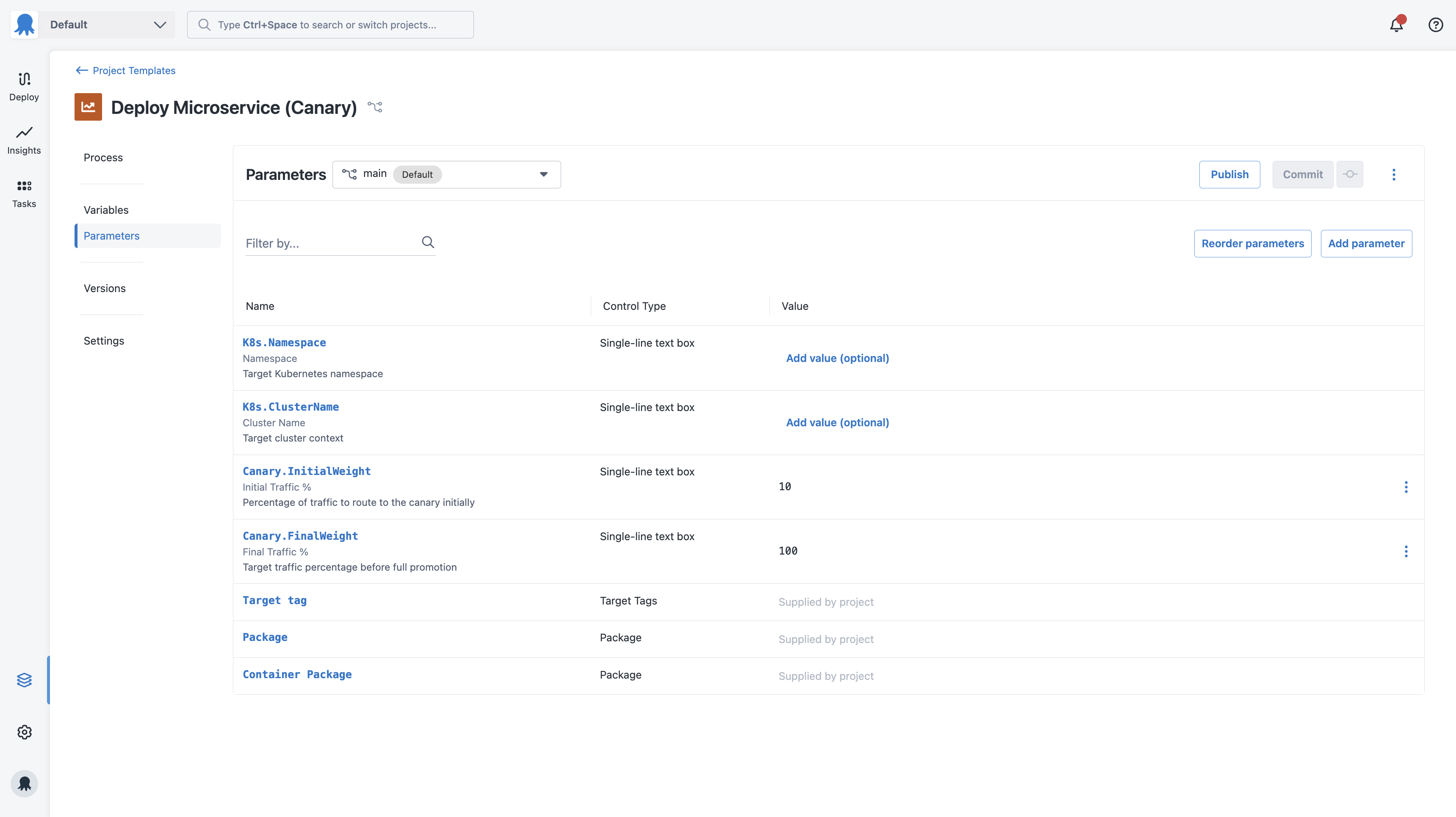
Parameters let you define the inputs a user must supply when they create a project from the template. They’re the mechanism for making a template flexible. Rather than hardcoding values that differ between teams or spaces, you expose them as parameters.
Project templates don’t yet support parameter scoping or sensitive parameter default values. We’re still shaping how parameters, variables, and scoping work together and expect this area to evolve. We’d love your feedback.
For a full reference of supported parameter types and default values, see Template parameters.
To create a parameter, navigate to Parameters on your project template and add a new parameter.
Variables
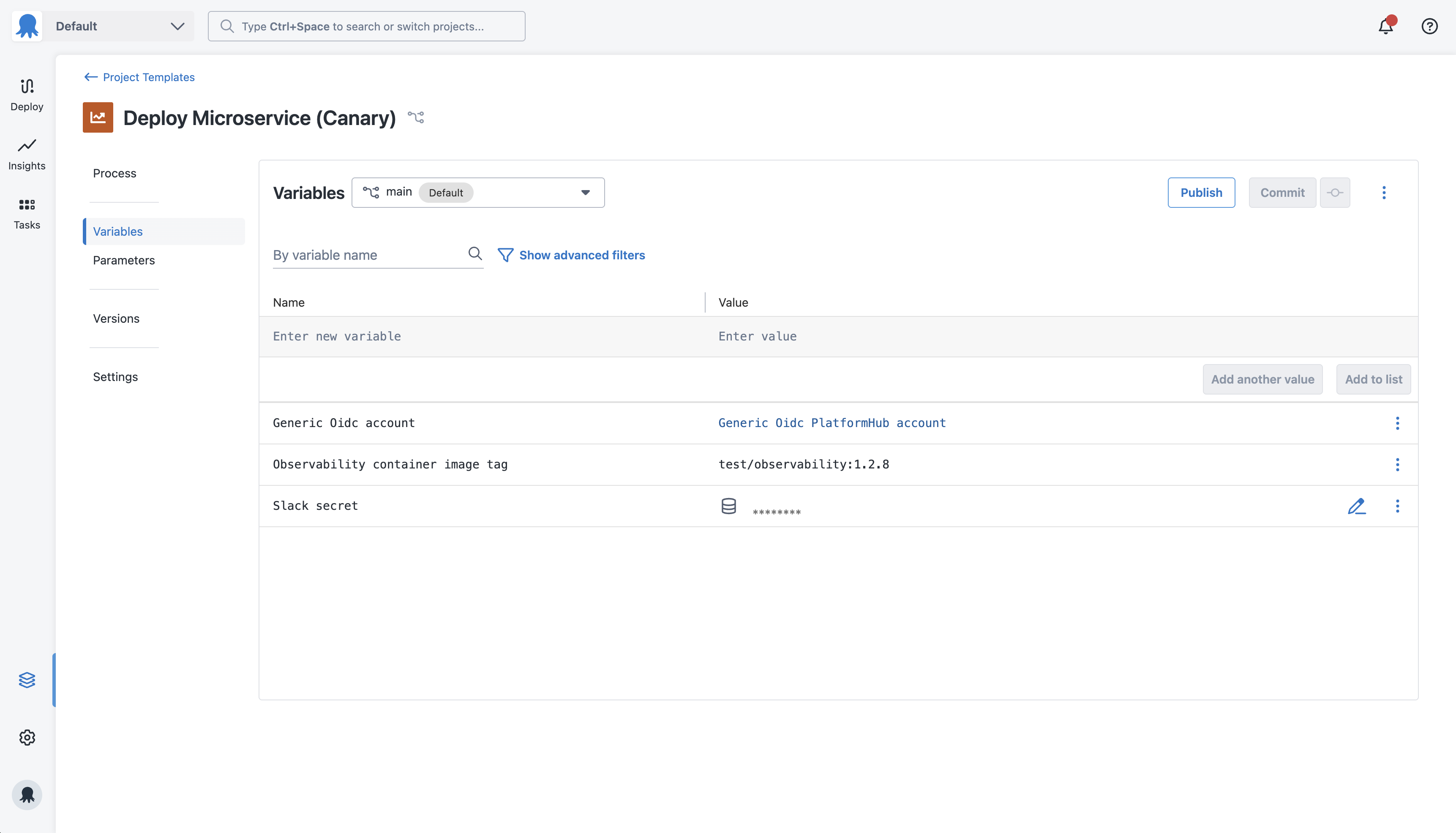
Variables in a project template work the same way as project variables in a standard Octopus project. Any variable you define is available to the deployment and can be selected in steps.
Unlike parameters, users can’t change the variables defined in a template when creating a project from it. Use variables for values that must be consistent across every project, like accounts. If you need users to provide their own value, expose it as a parameter instead.
Variable values can reference parameters, letting you combine fixed template-level values with project-supplied inputs where needed.
Variable types
Project template variables support the following types:
- Text: plain string values.
- Sensitive: encrypted values like passwords and API keys.
- Account: references to accounts defined in Platform Hub. Add the account in Platform Hub before using it in a template.
- Certificate: references to certificates defined in Platform Hub.
Variable scoping
You can scope a project template variable to any combination of the following:
- Specific steps in the deployment process.
- Process template usages, when the template’s deployment process includes one or more.
- Environment parameters, target tag parameters, or tenant tag parameters defined on the template. Whatever the project’s parameter value resolves to determines the scope.
Scoping is fixed at the template level. The same scoping rules apply to every project created from the template.
Project settings
Project templates let you set a few project-level defaults that flow through to every project created from the template. Configure these in Settings on the project template.
- Multi-tenant Deployments: choose whether projects created from the template require tenants, allow tenants, or run untenanted. Users can’t change this on a project created from the template.
- Project Persistence: choose the preferred storage for projects created from the template, either in Octopus or backed by Git. The project creation flow defaults to your recommendation and lets users pick a different option if they need to.
We’re planning to add more template-level settings, including default lifecycle and channel configuration, once those features are available in project templates.
Git repository structure
Octopus stores each project template as a folder in the Platform Hub Git repository. The folder name is a slug derived from the template name. Each folder contains four OCL files:
project-templates/<template-slug>/
    deployment_process.ocl
    parameters.ocl
    template.ocl
variables.ocltemplate.oclcontains the template settingsdeployment_process.oclcontains the deployment process stepsparameters.oclcontains the parameters defined for the templatevariables.oclcontains the variables defined for the template
Octopus stores published versions, sensitive variables, and space sharing configurations in the database, not in the Git repository.
Committing, publishing, and sharing
After you’ve configured your project template, see Publishing and sharing templates for how to commit, publish, and share it.
Using a project template
After you publish and share a template, users in a space can create a new project from it. For details on creating and managing templated projects, see Templated projects.
Feedback
Project templates are in Public Preview and we’re actively shaping how the feature works. If you run into something unexpected or have thoughts on how parameters, variables, scoping, or anything else should work, we’d love to hear from you. Share your feedback to help us build this the right way.
Help us continuously improve
Please let us know if you have any feedback about this page.
Page updated on Thursday, May 28, 2026